Secure, Automated Network Device Backups
You probably have at least a few business-class switches and routers silently do their job, year after year. Network devices can be so reliable that we configure them once, and then forget that they exist. However, forgetting them is a really bad idea, since they require regular OS or firmware updates to patch vulnerabilities, and at some point, they will become unreliable and fail. If your device fails, do you have the configuration available to apply to its replacement? Are you sure the configuration that’s in your archive or documentation is up to date? This post deals with automating backups from Netgear switches and Ubiquiti EdgeRouters (and possibly switches, if they run EdgeOS). Please check out the accompanying repo at https://github.com/craigafinch/network-backup-scripts
Disk space utilization monitoring in Google StackDriver
Setting up disk space utilization alerts in Google Stackdriver is almost unbelievably tricky. It’s easy to think that you can just choose the metric “Disk Utilization” and add a condition to alert when disk utilization crosses some threshold for some length of time (such as over 55% for 1 hour).
File System Type Filter
Your first problem is that a Linux system has many types of file systems, even if it only has one disk. You probably want to alert when your root disk is running out of space; therefore, you need to filter out non-disk filesystems like procfs or tmpfs. Add a device filter to select exactly which devices you want to alert on; in my case, with only one disk per server, I match only on device rootfs.
Managing remote servers with salt-ssh
I love using Salt to configure and manage servers at scale. Typically, a Salt master server manages an army of servers which are on the same private network. A salt-minion daemon runs on each client server and communicates with the master. Sometimes you need to manage a server which is outside of your internal network, such as a marketing web server running on a service like AWS LightSail, Linode, or Digital Ocean. That’s when salt-ssh comes in handy.
Find Last Login Time for Wordpress Users in the SQL Database
Question: What are the timestamps for the last login for every Wordpress user in this Wordpress site?
Most answers say to install some plugin, and there are dozens that will show the date and time when each Wordpress user last logged in. However, plugins are a problem, because they always need to be kept up to date, and many plugins get abandoned. Now, you have a potential security problem. Also, this approach assumes that your Wordpress front-end is up and running; if your site has been hacked or accidentally broken, you need to go into the database to do some forensics.
MySQL replication fails with WSREP error after restart
Scenario
A single Percona MySQL 5.7 server replicates asynchronously with a cluster of Percona MySQL 5.7 servers. After rebooting the single server, replication failed with the following symptoms:
mysql> show slave status \G**************************** 1. row ************** Slave_IO_State: Waiting to reconnect after a failed registration on master Master_Host: my-replication-partner Master_User: repl Master_Port: 3306 Connect_Retry: 60 Master_Log_File: mysql-bin.000120 Read_Master_Log_Pos: 3848512 Relay_Log_File: my-host-hame-relay-bin.000012 Relay_Log_Pos: 4 Relay_Master_Log_File: mysql-bin.000120 Slave_IO_Running: Connecting Slave_SQL_Running: YesI checked my MySQL text log (/var/log/mysql.log in my case, but the path may vary, or messages may go to syslog) and found the following error:
Updating to Wordpress 5 on a Linux Host: Requesting FTP Credentials
Wordpress 5 didn’t install automatically on sites hosted on my CentOS 7 Wordpress hosting server. That’s by design, because I’m selfish and I’d rather wait for a few bug-fix releases before making a major upgrade. When I chose to upgrade manually on a test site, Wordpress asked for my FTP credentials:
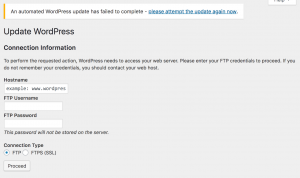
Connection Information: FTP credentials
If you’re hosting Wordpress on your own server, it does not need FTP credentials. This page is a symptom of a permissions issue with the underlying server. The web server (typically Apache) is unable to write the updated files to the Wordpress directory. From a security standpoint, this is actually a good thing. You generally don’t want to allow a public-facing service to make changes on your server. This problem occurs in other situations, such as configuring the WordFence plugin, so I’ve written a page devoted to troubleshooting Wordpress permissions on Linux hosts. That page describes how to fix the permissions issue without compromising the general security of your Wordpress host.
Optimize the Wordfence Firewall: Needs FTP Credentials
I use Wordfence as a Wordpress security solution. Even the free version has a comprehensive set of features, and the premium version is even better. It’s very easy to install and configure Wordfence as a regular plugin. However, the step to “Optimize the Wordfence firewall” fails for many people. This is not the fault of Wordfence, since different steps may be required depending on how your web server is configured. My solution is for those who are hosting their own Wordpress, but may be helpful to other situations. Please note that these instructions affect the security of your system, and are aimed at users with intermediate to advanced Linux knowledge.
How to run Shadowrun: Dragonfall on Ubuntu Linux
I’m very happy that Harebrained Schemes chose to release its Shadowrun game series (Shadowrun Returns, Shadowrun: Dragonfall, and Shadowrun: Hong Kong) for Linux. It can be a little difficult to get this stuff running on Linux. In this post, I will explain the errors you may see when trying to run Shadowrun on Linux.
Installation Procedure
I purchased and downloaded Shadowrun:Dragonfall on sale from Humble Bundle. 1. Verify file integrity. The md5 checksum is provided on Humble’s download page-check the output from this command against what Humble provides. This is how you make sure that you aren’t installing a corrupted or infected application on your system: [code language=“bash”] md5sum shadowrun-dragonfall-linux.tar.gz_2.0.9.zip [/code] 2. Unzip the downloaded file: [code language=“bash”] unzip shadowrun-dragonfall-linux.tar.gz_2.0.9.zip [/code] 3. Move the unzipped file (shadowrun-dragonfall-linux.tar.gz) to wherever you want to install it. I put it in a subdirectory called “Games” in my home directory: [code language=“bash”] mv ~/Downloads/shadowrun-dragonfall-linux.tar.gz ~/Games/ [/code] 4. Unpack the TAR archive. Note that there is a minor error on the part of the developers or Humble; the file you get after unzipping has the wrong file extension, so you have to use a different command than you normally would. The file should be called “shadowrun-dragonfall-linux.tar” because it’s not compressed with gzip. [code language=“bash”] tar xf shadowrun-dragonfall-linux.tar.gz [/code] 5. Run the game. This probably won’t work the first time; see the appropriate section below to install required packages on your system. [code language=“bash”] ~/Games/Shadowrun\ Dragonfall/Dragonfall Dragonfall: error while loading shared libraries: libGLU.so.1: cannot open shared object file: No such file or directory It seems Shadowrun Dragonfall has exited unsuccessfully (error = 127). Please verify that you have the latest drivers installed before filing a bug report here: http://harebrained-schemes.com/shadowrun/bug-reports [/code] 6. Install required packages on Ubuntu 16.04 (Xenial) 64-bit (x86_64). Shadowrun is a 32-bit game, but it runs on 64-bit Ubuntu because of Ubuntu/Debian’s multilib feature. You just need to install two specific 32-bit libraries that probably aren’t on your system by default: [code language=“bash”] sudo apt-get install libxcursor1:i386 libglu1-mesa:i386 [/code] You also need the appropriate graphics card drivers for your hardware. I have an Nvidia card and I use the proprietary drivers available directly from Nvidia (not the open-source version, which has caused problems for me with other games). If you had to do something differently on another version of Ubuntu, please leave a comment below.
New Relic APM on Fedora/CentOS/RedHat with SELinux Enforcing: Solved
I found the solution for getting the New Relic APM Agent to run on a CentOS 7 system with SELinux Enforcing. The only SELinux modification you have to make is to change the context of the log file directory /var/log/newrelic. You can temporarily make these changes with the chcon command: [code lang=“bash”] chcon -R -t httpd_log_t /var/log/newrelic/ [/code] Kill any running instances of newrelic-daemon. If you’re using New Relic’s recommended default setup, make sure that the file /etc/newrelic/newrelic.cfg does not exist. Verify that all required values in /etc/php.d/newrelic.ini are correct (especially the license key and the application name). Finally, restart httpd: [code lang=“bash”] systemctl restart httpd [/code] If that works, you should see output in both /var/log/newrelic/newrelic-daemon.log and /var/log/newrelic/php_agent.log. Now, make this file context change persistent, and verify the result: [code lang=“bash”] semanage fcontext –add –type httpd_log_t “/var/log/newrelic(/.*)?” restorecon -RF /var/log/newrelic/ ls -laZ /var/log/newrelic/ [/code] When you restart Apache, it spawns the newrelic-daemon processes, which communicate with APM via the socket file /tmp/.newrelic.sock. You really don’t want to run the newrelic-daemon processes via systemd if you can avoid it. The resulting process tree should look like this: